Comparing AI Automation Tools: Understanding the Difference Between Claude and Codex
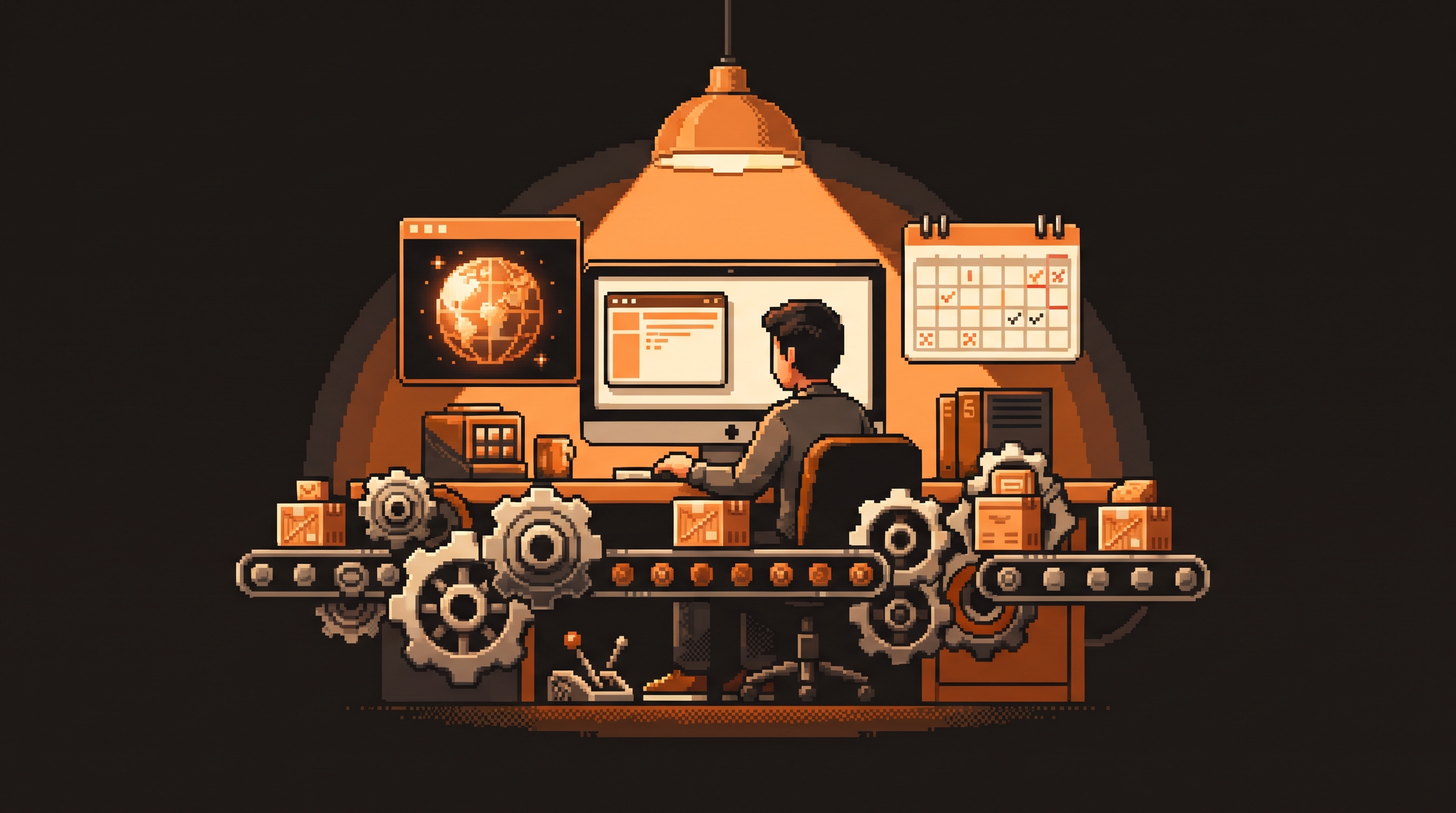
Think of the two platforms as two very different employees. Claude feels like a gifted colleague you go to for nuanced writing, hard judgment calls, and the awkward conversations that need a careful word. Codex is more like a tireless operations worker — give it a process, and it will navigate websites, click through your desktop apps, and keep the schedule running in the background while you do other things. Neither is "better." They're hired for different jobs.
This guide breaks down where each one wins so you know which employee to call, and when to keep both — plus when neither should be involved at all.
Quick Answer
Choose Claude when you prioritize ease-of-use for creative and social tasks — nuanced writing and high-touch roles where judgment and safety filters matter. Choose Codex when you need raw power for complex, multi-step system automation: an integrated browser, Computer Use for desktop apps, centralized scheduling, and Git as a safety net. Most operations teams run Codex as the automation workhorse and keep Claude for the creative and high-sensitivity jobs.
Key Takeaways
- Integration vs. segmentation: Codex keeps browsing, files, and role-management in one workspace; Claude's features often live across separate tools.
- Computer Use lets an AI act directly on your desktop — smoother for non-web, local-app workflows.
- Unified scheduling centralizes every recurring job in one sidebar, killing context switching.
- Git is a safety net that turns "the AI changed my work" into a reversible step.
- Fast Mode speeds things up ~1.5x but burns tokens faster — use it strategically, not by default.
Integrated Browsing: One Workspace vs. Extension Hopping
An integrated browser lets the AI navigate, read, and process a website without you manually moving data into a prompt box. The difference is how seamless that feels.
In fragmented setups, accessing web content means bridging different software. Pulling pricing from three competitor sites might require opening each manually. With an integrated browser, the AI does those steps inside its own environment — you give one prompt like "Check these three links and summarize any price changes from yesterday," and it handles the navigation.
For anyone doing high-volume research, the "one workspace" approach is the quieter win: your files, chat history, and live web data all live in the same window, so the workflow feels continuous instead of stop-and-go.
Computer Use: Beyond the Browser
Many business processes run in offline or specialized software — a proprietary accounting tool, a local file manager — not on a public website. Computer Use is the capability that lets an AI act directly on your operating system or approved desktop apps.
The difference is who plays middleman:
- Option A (manual): you copy from the browser, then type it into the desktop app.
- Option B (Computer Use): the AI clicks buttons, opens windows, and acts on your OS.
# Option B — the AI does the desktop work itself
task: nightly-sales-entry
schedule: daily 23:00
steps:
  - browser.open: pos-portal.example
  - browser.login: saved-session
  - scrape: today's sales rows
  - app.open: accounting.xlsx
  - app.fill: append rows to the ledger
  - app.save + git.commit
Option B prevents "frustration fatigue" — the drain of managing every in-between step yourself. For automations touching spreadsheets or specialized software, this integration is smoother and less error-prone.
Unified Scheduling: Stop Checking Five Windows
If you have three projects running at once, tracking them individually is taxing. A unified scheduling system brings every automation into one sidebar — no more opening multiple tabs to see if scripts finished.
It pays off hardest for recurring work:
- Running a daily lead-generation summary.
- Automating weekly email reports.
- Scheduling data entries every 12 hours.
Centralizing these eliminates context switching — the mental energy lost jumping between tools to check on automations.
# Every job in one dashboard — status at a glance
jobs:
  - name: lead-summary
    schedule: daily 08:00
    state: completed
  - name: weekly-report
    schedule: friday 16:00
    state: pending
  - name: data-entry
    schedule: every 12h
    state: running
Image Generation: In the Conversation or in a Side Mode
For content creators, where image generation lives matters as much as its quality:
- Integrated experience: the AI generates and edits images in the chat window. Want to change a logo's colors or adjust the lighting? Type it as part of the conversation.
- Segmented experience: high-fidelity image tools that live in a "separate" mode, making it harder to keep brand context consistent across iterations.
If your goal is social posts or marketing assets, an integrated flow lets you adjust visuals without losing progress on the underlying content.
Git: The Persistent Safety Net
For non-coders, "Git" is intimidating. Reframe it as a persistent safety net — a "Save Point" system.
AI is unpredictable. It might delete a line of code or overwrite a piece of data. Integrated version control means every significant step creates a mark, so when something goes wrong you can:
- See exactly what changed.
- Revert to a previous, known-good state.
- Avoid losing work during long-running background tasks.
git diff            # review what the agent changed
git checkout -- .   # revert if it's wrong
git commit -m "accepted agent change"   # lock in the good version
For someone who isn't a programmer, this is just an automatic undo button that records history across days or weeks of automated work.
Speed vs. Thoroughness: The Fast Mode Trade-off
In some industries, a five-minute delay costs money or misses a window. Some systems offer Fast Mode, which favors speed over thoroughness — but it may consume more tokens (your monthly "units" of AI interaction) to get the result.
For urgent, deadline-driven tasks, that's a strategic choice. For the daily volume, standard speed is the cheaper, steadier default.
When to Choose Each Tool
Neither tool wins outright — they serve different roles:
| Use case | Best tool | Why |
|---|---|---|
| Nuanced writing, empathetic responses | Claude | High-nuance creative judgment |
| Strict-filter sites (e.g. LinkedIn Recruiter) | Claude | Safer against commercial-script flags |
| Quality creative output, no complex system control | Claude | Consistent voice in one interface |
| Background automations while you work | Codex | Unified scheduling + browser |
| Direct OS / desktop-app interaction | Codex | Computer Use reliability |
| Complex stable automations | Codex | Integrated Git + multi-step tools |
Transitioning Between Systems
Moving between platforms doesn't mean starting over:
- Use migration tools — built-in importers carry over chat logs and project configurations.
- Identify "skills" — find the folders holding your instructions (writing style, safety rules), which the AI reads before starting.
- Rebuild scheduling — recurring tasks may need to be recreated in the new "Scheduled" dashboard to run correctly.
Frequently Asked Questions
Does moving my data from one system to another delete my old accounts?
No. Most migration tools and imports function as copies. Your original history stays where it is; the import simply brings that information into your new workspace so you can continue there.
What is a "deterministic" workflow?
A deterministic workflow has a predictable outcome every time — like "send an email when a file hits my desk," always happening without creative variation. For these, standard automation tools like n8n are used alongside AI rather than relying on pure AI generation.
How much usage will I use in Fast Mode?
Fast Mode accelerates the thinking process but consumes units — tokens — at a faster rate. It speeds up your time but can drain your monthly balance faster because the system is processing at high speed to deliver an instant result.
Is Git hard to learn for non-technical people?
Underlying Git is complex, but using it inside an AI interface is simple. For most users it works as a visual log or status bar — you click to confirm a saved step or see what changed in a file.
Final Thoughts
Pick the tool for the job. If you want an AI that feels like a conversational partner with high creative judgment, Claude is a powerhouse. If you want a "worker" that navigates websites, interacts with your computer's files, runs scheduled tasks in the background, and keeps your work backed up, a Codex-style environment has the infrastructure. The best results come from knowing the strengths of each: creative AI for content and drafting, robust automation for the heavy lifting.
Note: hero image generation was unavailable for this post (kie.ai rejected the API key's IP whitelist); the staging hero was not produced.
Related posts
Mastering Autonomous Workflows with Claude's /goal Command
Stop typing every instruction. Claude's /goal command hands the AI a finish line and a 5-part framework — Task, Why, Outcome, Constraints, Verification — so it works autonomously until the job is truly done.
The Responsibility Ladder: How to Move from Basic Prompts to Autonomous AI Work